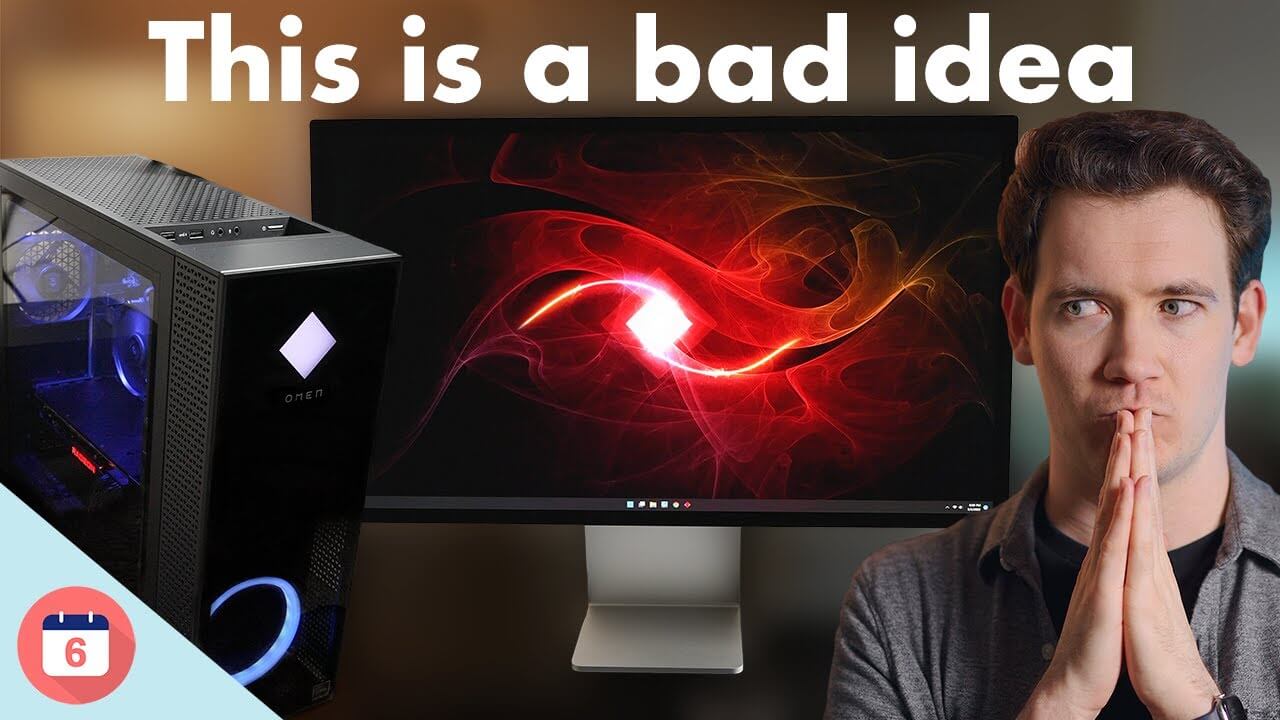
If you use and Mac and a PC, you might be
tempted to get Apple’s new Studio Display so you can use it for both computers. But I'm
here to tell you why that might not be such a good idea and if you insist, I will walk you
through how I finally got this setup to work, so you don't have to go through the five chords I
went through in order to get the display working. So why is this setup not a great idea for
using a PC? And specifically, in my case, a gaming PC? First, the Studio Display is a 5k
60 hz display, so if you’re a serious gamer, you're likely going to want to
display with a higher refresh rate. And you also probably don't need a 5k display
and will be fine with just a 4K display.
But what if you really like the color accuracy
of the studio display, the overall look, what's the issue with using it with a PC? The second reason using this display with
a Windows PC isn't a great idea is there's no native way within Windows to control
its brightness. You can only control its brightness on a Mac, and there's no button
anywhere on the studio display to get to some menu to adjust its brightness
like you see with most other monitors. The third reason this is a bad idea, is unlike
most monitors, it only has one single port for display input, in this case a Thunderbolt 3
port. While there are 4 USB-C ports in total on the back, the other three are downstream
connections meant for connecting peripherals, storage, and networking devices. So if you
want to switch inputs, you'll need to manually unplug one USB-C cable from your Mac and
then plug in the other one from your PC. So, after hearing all of those downsides, if
you still think this is a good idea.
Well, here's what happened to me when I tried to get
this setup to work. I looked at the back of my PC, which is an HP OMEN 30L with an AMD Radeon RX
6700XT graphic card. The graphics card has 3 DisplayPort outputs plus one HDMI output. So I
ordered a cable off Amazon that’s one side USB-C and the other side DisplayPort. I got the
cord, plugged it into the PC, and then the Studio Display and nothing happened thinking.
Well, thinking I just must have got a bad cord, I bought several different ones on Amazon from
different brands, even one that was HDMI to USBC. Even though I didn't think that one was going to
work. I plugged them in one by one and absolutely none of them worked. And by this time, I'm
thinking, okay, what the hell is going on here? Well, here's what was going on. The
Studio Display, it's expecting a Thunderbolt signal. Now, a lot of PCs don't
have Thunderbolt and that's actually okay. When it doesn't get a Thunderbolt signal, the
studio display will happily take a DisplayPort 1.4 signal.
Now, here's where the problem is,
though. It seems like the Studio Display will only take a DisplayPort 1.4 signal if the
cable you're using has a high enough bandwidth. And a lot of the cables you see on Amazon
that have one DisplayPort end and one USB-C one, they’re made to plug the USB-C end into your
computer and the Display-Port end into a monitor. And shoutout to Justin Searls who wrote
a blog post, which I’ll link down below, about his own experience trying to do
this and he pointed me in the direction of a Displayport to USB-C cable made
by Cable Matters on Amazon that worked for him. And I've left the link to
this chord in the description below. So, I bought this cable, I plugged it into the
PC, and then I plugged it in the Studio Display and it worked…and not only did it work,
it was displaying Windows and glorious 5k.
So, I finally got this setup to work, but it's
still probably not optimal for a lot of people out there who want to use the Studio Display’s camera
and it's speakers because in order to use those, you'll need to actually use Thunderbolt
from the PC to the Studio Display, and about the only other way I've seen to get
Thunderbolt onto a PC, that doesn't already support it is to buy a Thunderbolt card
and plug it in directly to the motherboard like the GC Titian Ridge Card made by Gigabite
where it’ll fit into one of the PCIE slots on your computer’s motherboard and then you can plug in
a Displayport cable from your Graphics card into the Thunderbolt card and then use a Thunderbolt
cord to plug your PC into the Studio Display.
Alright. I know this has been a lot and hopefully
this helps walk you through why I don't think this setup is optimal at all for Windows
PC users but it also helps illustrate like, it shouldn't be this hard to connect even
two Macs simultaneously into a single Studio Display and then just switch inputs so you're
not always unplugging cords and certainly, it should not be this hard to connect a PC into
a display. No matter who made the display. This will certainly be something I'll cover in the full
six months later review of the Studio Display. So if you want to see that review, make
sure you're subscribed to the channel. If you have any further questions, leave them
in a comment below. And if you found this video entertaining watching my torment trying to get
the setup to work. Or if you found it helpful, hit that thumbs up button.
And if
you're looking for what to watch next, check out some of our other Apple reviews like
our review of the iPhone 13 Pro, iPad Mini, Apple TV 4K, and the HomePod Mini. For 6 Months
Later, I'm Josh Teder, thanks for watching..